What the crew does in the field arrives in the office on its own.
Crane hire runs on phone calls, dockets and a text the night before. CraneIQ was built by an operator and rigger from the crew's side of the job: the crew's phone and the office run off the same system, so nothing is typed twice and nobody has to chase it. Here's one job, start to finish.
Pick the right crane off the manufacturer's chart, in seconds.
Enter the load, radius and height. Lift Intelligence checks every crane in your fleet against its own manufacturer load chart and tells you which ones can do the lift, and how hard they're working.
- Enter the lift. Load weight, radius and height, the ground conditions, and how hard the site lets you work the crane: 80, 90 or 100 percent of chart.
- See which cranes can do it. Every machine is read against its own chart: boom length, counterweight, outrigger base and reeving, with the chart code it came from. The hook block and rigging are added to the weight before the chart is read.
- Quote it. Utilisation is shown against the real chart, along with the lightest counterweight that does the job, so you don't cart ballast you don't need. Then it goes on the board, checked again when you allocate the crane and crew.
Saves: hours with the load charts on every quote, and sending a crane that's too small or too big.
Try Lift Intelligence →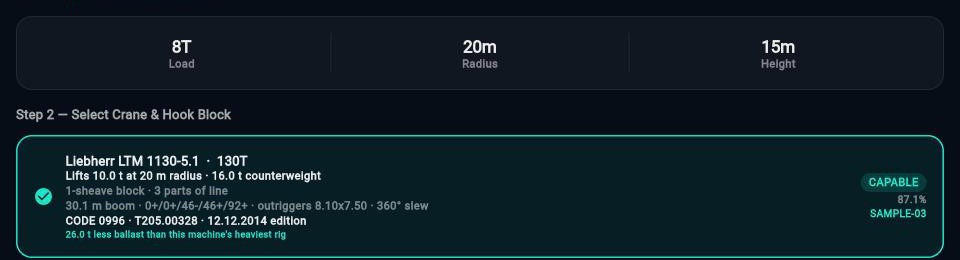

Not a vague text the night before.
The crew get the whole job on their phone before they leave the yard: everything they need to turn up ready, set up right and lift safely.
- Client, crew and site. Who they're working with, where, when to leave the yard and when to be on site.
- Crane configuration and gear. Counterweight, block, reeving and what travels on the gear truck.
- Lift plan and SWMS. The lift plan and SWMS are attached to the job, so the crew can open them on the phone before heading to site.
Saves: phone calls at 5 am, and a crew finding out on site that the gear is wrong.
Open the crew view →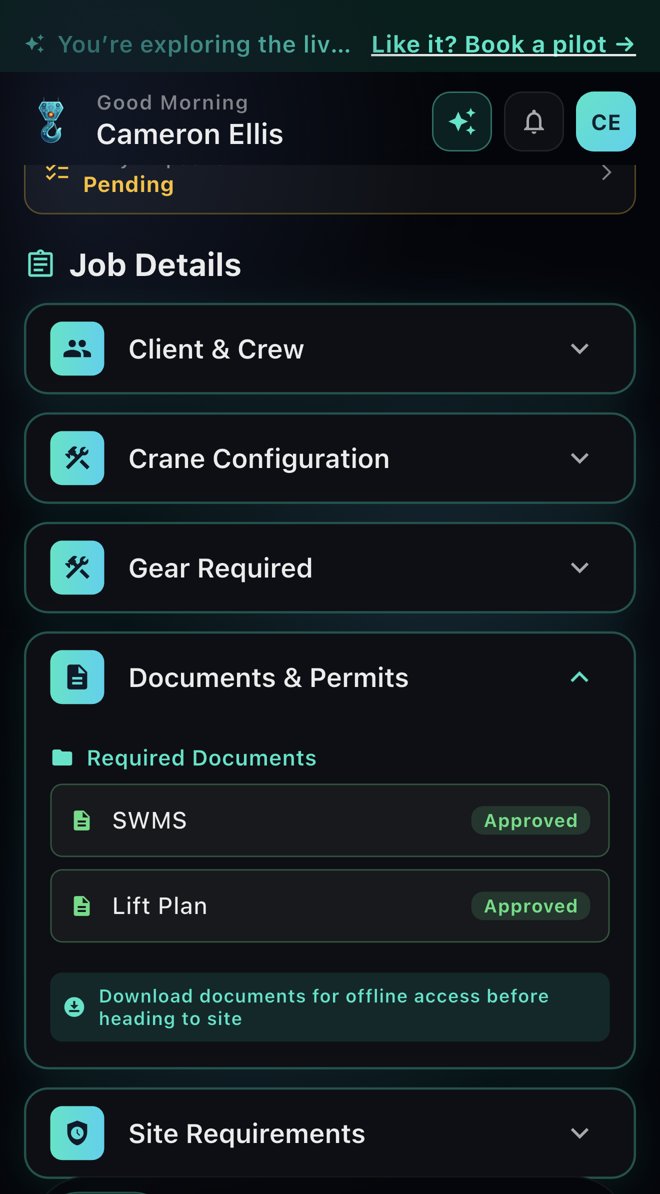
A failed prestart grounds the crane. The workshop hears straight away.
The operator does the daily inspection on their phone. If something fails, the office doesn't find out from a phone call at lunchtime.
- Scan the crane's green sticker. The right machine comes up, with its last recorded hours and kilometres.
- Check it section by section. OK, faulty, not applicable or showing wear, with photos and comments.
- A fault does the rest. A Category A fault takes the crane out of allocation and tells the workshop and operations. Ops and the workshop can open the report as a PDF.
Saves: a faulty crane going out on the next job, and paper prestarts lost in a cab.
See today's prestarts →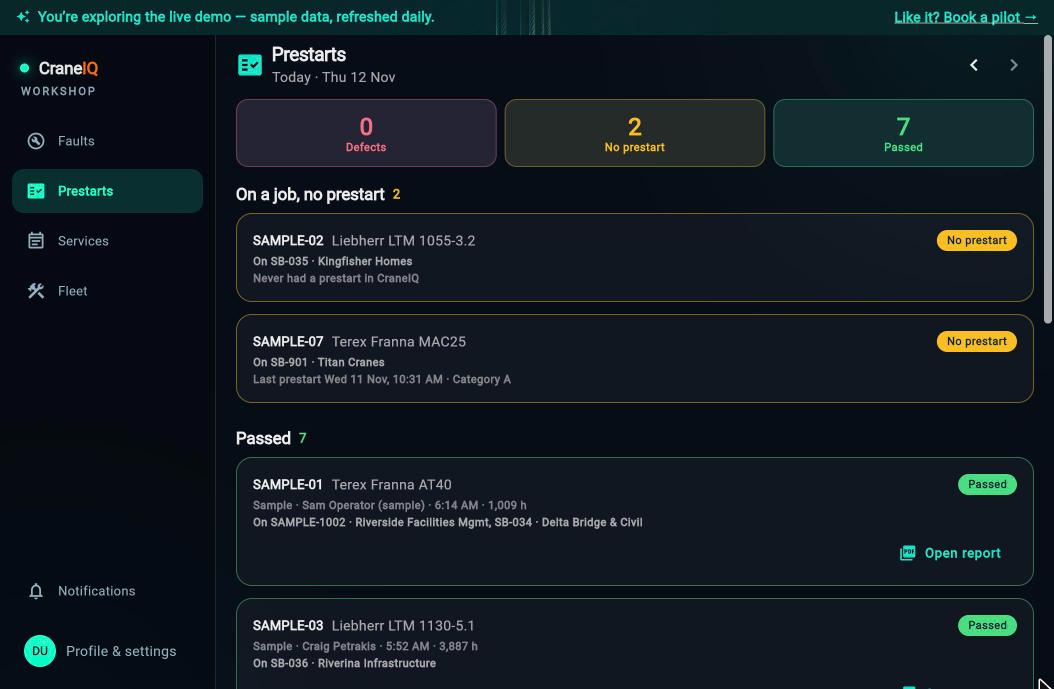
Hours priced off your EBA, on the crew's phone.
The crew log their shift once. Payroll gets it already worked out against your enterprise agreement, and is told it's waiting.
- Log the shift. Start, finish and break, with a check that catches a finish before the start.
- Allowances, the way the EBA reads. Travel, meal, wet weather, dual lift, living away and the rest, priced at your rates.
- Submit. Payroll gets a notification straight away, and approves or queries it in one place.
Saves: re-keying timesheets, and crew paid short or over.
Log a shift as the crew →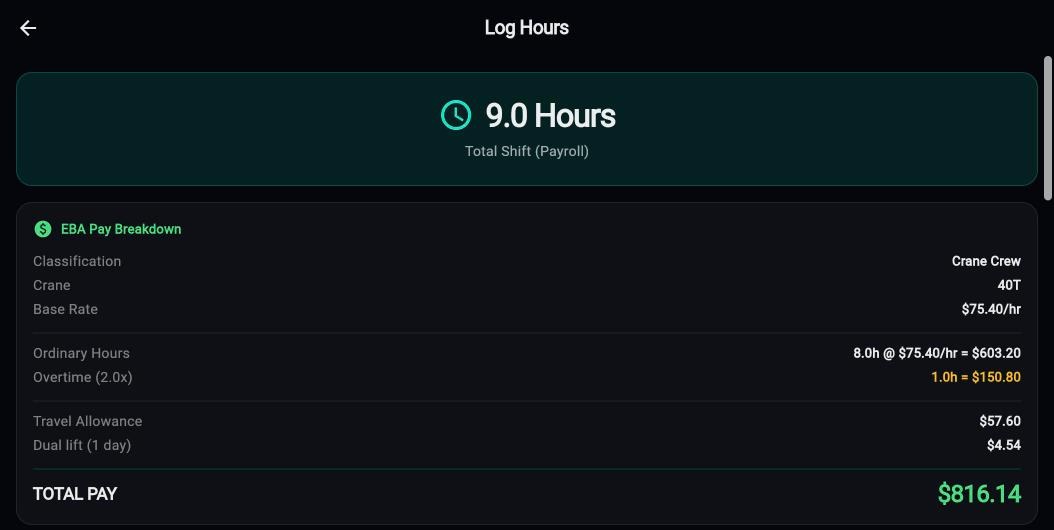
The client signs on site. Billing knows before the crew are back.
No dockets in a glovebox. The sign-off is the start of the invoice.
- Client sign-off on the phone. Hours on site, signature and any wet weather, captured before the crew leave.
- Ready to invoice. Billing gets a notification and the job joins the Billing queue with the hours and quote side by side.
- Review and invoice. The invoice syncs to your accounting software.
- It sharpens the next booking. Every approved sign-off records how long the job really took. Book that client, site or crane again and CraneIQ suggests a duration from your own finished jobs, says how many it's based on, and warns when a client's jobs usually run longer than booked, so the crane's next job isn't left waiting. You tap to use it; nothing is filled in for you.
Saves: lost dockets, days between the job and the invoice, and a board built on guesses.
See Billing →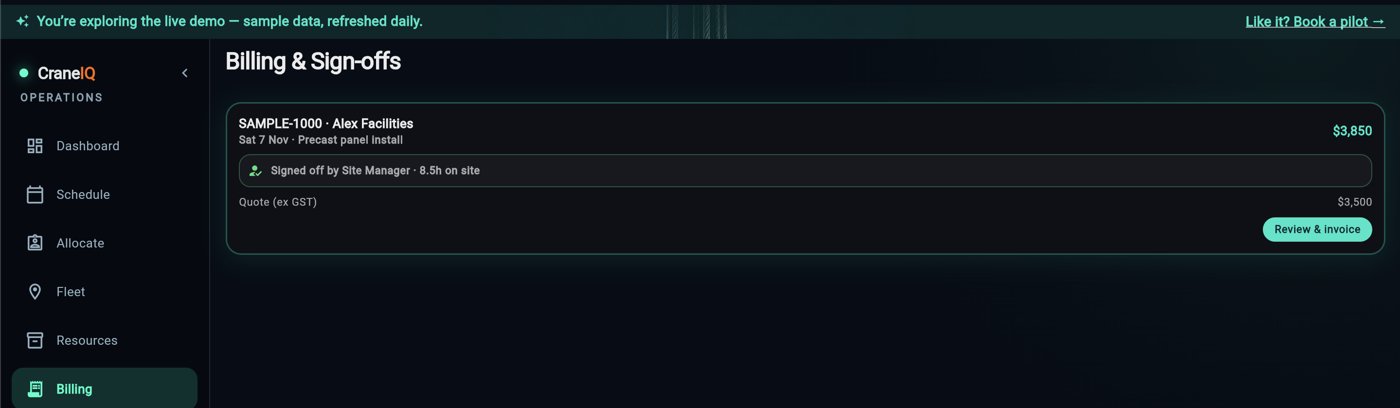
Live telematics. Crane location on the board, and engine hours and kilometres feeding straight into prestarts and servicing.
Run a job through it yourself.
The live demo is a full working yard with sample cranes, crew and jobs. No sign-up, no setup. Switch between the office and the crew's phone and follow a job through.
Explore the live demo Become the founding yard